Embedded card component
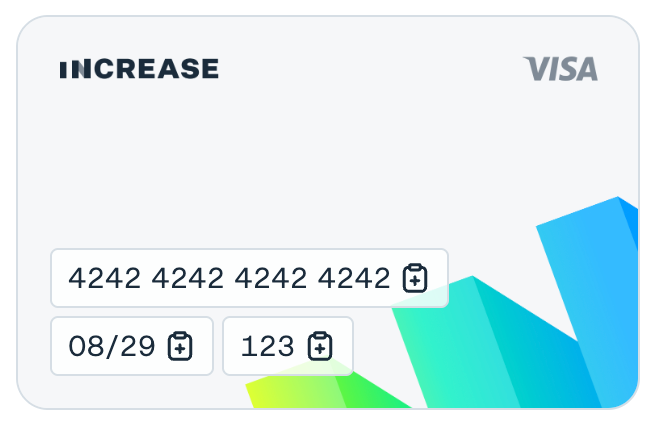
Increase offers an embeddable card component that can render the details for a Card within an <iframe /> component on your website. This can allow you to display sensitive information like the Card’s primary_account_number and verification_code without having the information ever pass through your systems.
Not accessing the Card’s Primary Account Number is a good practice to help comply with the Payment Card Industry Data Security Standards (sometimes abbreviated as “PCI”).
Usage
Start by calling the Create a Card details iframe endpoint. You’ll need the ID of the Card you wish to render. The URL you generate will be accessible for one hour.
$ curl -X "POST" --url "https://api.increase.com/cards/${card_xx}/create_details_iframe" \
  -H "Authorization: Bearer ${INCREASE_API_KEY}" \
  -H "Content-Type: application/json"
{
"iframe_url": "https://site.increase.com/card_details_iframe/index.html?token=abc123",
"expires_at": "2025-01-01T00:00:00.00Z"
}Once you have an iframe URL, you can embed an <iframe /> in your UI:
<iframe
  style="width: 312px; height: 200px; border: none"
  src={iframe_url}
  allow="clipboard-write" {/* Necessary for copy buttons to work. */}
/>
The above code will render something like this:
Physical cards
By default, the embedded component will render your virtual card art. To render an image including your Physical Card artwork instead, set the physical_card_id parameter when creating the iframe URL. The component will also include the chip and Visa logo.
curl -X "POST" --url "https://api.increase.com/cards/${card_XXX}/create_details_iframe" \
    -H "Authorization: Bearer ${INCREASE_API_KEY}" \
    -H "Content-Type: application/json" \
    -d '{"physical_card_id": "${physical_card_XXX}"}'